The GSC vs GA4 difference trips up almost everyone the first time they open both tools. I once spent an entire afternoon staring at Google Analytics 4, trying to figure out why a client’s organic traffic had dropped 22% in a week. GA4 showed me the drop, but not the reason.
Frustrated, I switched to Google Search Console. Within three clicks, the issue became clear. A problem with a canonical tag caused 12 pages to be deindexed after a plugin update. GA4 told me there was an issue. Search Console showed me how to fix it.
This is a common confusion that trips up many beginners and even some experienced marketers. GA4 and GSC might seem like they do the same thing because they both run in a browser tab titled “Google” and both show you charts. But in truth, they handle different tasks:
- Search Console tells you, “How does Google find, crawl, and rank my site?”
- GA4 shows you, “What actions do people take when they’re on my site?”
If you’ve ever clicked into one tool hoping it has the answer, only to realize you needed the other tool, this guide can save you a ton of time. I’ll explain what each platform tracks, how they’re similar, how they’re different, and walk you through my exact steps for site audits—whether you’re starting a personal blog or handling SEO reports for multiple clients.
Main Points
- Google Search Console (GSC) helps you see how Google views your site by showing search queries, clicks, impressions, average ranking, indexing details, and tech issues.
- Google Analytics 4 (GA4) tells you what visitors do after they land on your site. It shows sessions, engagement, conversions, and how people behave across all traffic sources, not just search.
- These tools don’t replace each other. GSC doesn’t track what users do after clicking, while GA4 doesn’t track what users searched to find you.
- The true value lies in combining both. Use GSC to identify issues and GA4 to see how they affect traffic and actions.
What Is Google Search Console?
Google Search Console (GSC) is a free tool Google provides to show how Googlebot and Google Search deal with your website. You can think of it as a way to get a glimpse of your website through Google’s eyes — it’s about as close as you can get to understanding how the search engine views your site according to Google Search Central’s own documentation.
Purpose: GSC helps site owners keep an eye on, improve, and fix issues linked to how their site appears in Google Search results. It doesn’t measure all your website traffic — only what comes from Google Search.
What it measures:
- Search queries — the specific words people entered into Google before landing on your page
- Clicks — the total number of times users chose to visit your site through search results
- Impressions — how often your page showed up in search results, even if no one clicked it
- CTR (click-through rate) — the percentage calculated by dividing clicks by impressions
- Average position — the usual ranking of your page for a particular search term
- Indexing status — indicates if Google has included your page in its index
- Core Web Vitals — measures related to page load speed and how interactive it is
- Manual actions and security issues — warnings or penalties from Google, like malware alerts
Common Google Search Console reports you can check:
- Performance report – View stats like clicks, impressions, click-through rates, and positions. Filter the data by query, country, page, or device.
- Coverage report – Find out which pages get indexed, are excluded, or cause errors during indexing.
- Sitemaps report – See if Google processed the sitemap you submitted.
- Core Web Vitals report – Highlight pages with slow loading or poor interaction speeds.
- Mobile usability report – Spot problems that affect how pages work on mobile devices.
- Links report – Check internal links and the domains linking to your site that Google can find.
If you’re new to any of these, the Google Search Console Help Center has walkthroughs for every report listed above.
Example:
When you publish a post about “email marketing automation” and need to check if Google includes it in search results, you can use the Performance report in GSC. It shows how many impressions the post got, its average ranking, and which search queries led people to it. This even includes queries you didn’t aim for.
Who should use it:
People who care about being seen in organic search. This includes bloggers, SEO experts, small business owners, agencies working on client websites, and marketing teams tracking search reports. If Google lists your site at all, you need to link it to Search Console. If you’re just starting, our beginner’s guide to technical SEO covers the foundational setup before you dive into GSC reports.
What Is Google Analytics 4?
Google Analytics 4, or GA4, is Google’s tool to analyze websites and apps. Unlike GSC, it doesn’t just focus on search. It keeps track of user activity across all channels, including organic search results,s paid ads, social media platforms, emails, direct traffic, and referrals. Full definitions for every metric below are also documented in the Google Analytics Help Center.
Why it exists: GA4 helps you figure out what happens after a user gets to your website. It uses an events-based design where almost every action — such as viewing a page, scrolling, playing a video, or submitting a form — gets tracked as an event.
Key ideas to grasp:
- Sessions — a set of user activities that happen within a specific period. Unlike Universal Analytics, GA4 does not restart sessions at midnight.
- Users — individual visitors- are split into categories like “total users” and “active users.”
- Events — any measurable actions such as visiting a page or completing a custom task like signing up for a newsletter.
- Conversions — specific actions marked as key outcomes for business, like making a purchase, filling out a lead form, or downloading a file.
- Traffic sources — details on where visits come from, like organic search, social media, paid ads, referrals, direct links, or email.
- Engagement rate — this shows the percentage of sessions where people stayed for over 10 seconds, completed a conversion, or looked at more than one page. It takes the place of the old “bounce rate” idea.
- Landing pages refer to the first page visitors reach during their session.
- Acquisition reports — explain where users and their visits originate, including every channel, not just Google Search.
Example: Imagine your “email marketing automation” post is ranking well on GSC. With GA4, you can see how long visitors stayed, if they clicked on your related “email marketing tools” post, or if they signed up for your newsletter. These details show what drives results for your business.
Who should use it:
People looking to track user activity, measure how effective their conversions are, or check how marketing campaigns perform beyond just search numbers. This could include e-commerce store owners, marketers improving engagement, agencies showing clients ROI, or product teams tracking what users do on their app or site.
GSC vs GA4 Difference: A Full Breakdown
Most people are looking for this part. Here’s a clear side-by-side comparison of Google Search Console vs. Analytics.
| Feature | Google Search Console | Google Analytics 4 |
| Purpose | Monitor search visibility and technical health | Analyze user behavior and conversions |
| Data Source | Google Search index only | All traffic sources (organic, paid, social, direct, referral) |
| Audience | SEOs, webmasters, content teams | Marketers, analysts, and business owners |
| SEO Focus | Primary function | Secondary, via acquisition reports |
| Traffic Scope | Search-driven visibility only (not full traffic) | All website/app traffic |
| Conversions | Not tracked | Fully trackable via events/goals |
| Keywords | Actual search queries shown | Not shown (keyword data is withheld for privacy) |
| Clicks | Search result clicks | On-site clicks (via events, not by default) |
| Sessions | Not tracked | Core metric |
| Users | Not tracked (only query-level data) | Core metric |
| Bounce/Engagement | Not tracked | Engagement rate is a core metric |
| Landing Pages | Shown as “Pages” in the Performance report | Dedicated landing page reports |
| Search Queries | Yes — exact terms used | No |
| Revenue | Not tracked | Tracked via e-commerce events |
| Technical Issues | Crawl errors, indexing problems, mobile usability | Not tracked |
| Indexing | Full indexing status per URL | Not tracked |
| Core Web Vitals | Field data reported | Not directly reported |
| Reports | Performance, Coverage, Sitemaps, Links | Acquisition, Engagement, Monetization, Retention |
| Historical Data | 16 months rolling | Retained per account settings (typically 2–14 months for user-level data) |
| Best For | Diagnosing search visibility and technical SEO | Understanding on-site behavior and ROI |
Quick Answer Box
Is GSC or GA4 better for SEO? Neither one is “better”; they work together. GSC shows how people find you, while GA4 tells what they do after that. Use GSC to find keyword and indexing info, and GA4 to track engagement and conversions.
When Should You Use Google Search Console?
Use GSC when you want to know about search visibility or site health. These ten examples show when it’s the tool you need:
- Check keyword rankings — identify the exact search queries bringing up your pages and find their average positions
- Address indexing problems — check if pages are indexed, excluded, or blocked by robots.txt
- Boost CTR — spot pages with lots of impressions but few clicks to tweak titles or meta descriptions
- Keep up with Core Web Vitals — find slow-loading pages before they hurt your rankings
- Look for crawl errors — detect 404s, redirect loops, or server issues Googlebot runs into
- Track visibility over time — monitor impression trends to see growth before clicks catch up
- Spot pages in decline — compare past and current data to detect position or impression drops
- To submit and validate sitemaps, make sure Google has processed your sitemap.
- To improve sitemap mobile usability, identify pages with issues like tap-target problems or display errors on mobile devices.
- To request indexing after fixes — submit a URL to re-crawl it once you solve an issue.
- To audit manual actions or security concerns, look into penalties or malware warnings reported by Google.
Quick recap: If you’re wondering, “Is Google seeing this right?” or “What searches are leading people to me?” — you’re dealing with a Search Console question.
When Should You Turn to GA4?
Use GA4 to figure out what happens after someone clicks or how your marketing works across all channels. Here are ten situations where it applies:
- Track conversions — measure sign-ups, purchases, downloads, or form completions as conversion goals.
- Map user journeys — understand the visitor’s path across sessions and pages.
- Analyze sales funnels — find out where users leave before they finish buying.
- Measure revenue — keep track of e-commerce results, average purchase amounts, and how products perform.
- Compare traffic channels — check how paid, social, organic, and email traffic differ in quality and numbers.
- Monitor custom events — track things like scroll depth, video views, outbound link clicks, and file downloads.
- Check engagement rates — figure out which pages people spend time on and which ones they just glance at.
- Looking at campaign results — connect UTM-tagged campaigns to what happens on your site.
- Creating audience groups — organize users by activity, device type, location, or how they found you.
- Tracking user retention — find out how often visitors come back in the following days or weeks. (see our guide on how to set up conversion tracking in GA4 for step-by-step setup)
- Reviewing ROI across channels — pull together data from paid, organic, and referral efforts into a single view; this matters even for smaller sites, as covered in our local SEO fundamentals guide
Mini summary: If you’re asking, “What actions did visitors take?” or “Did this lead to a business outcome?” — that’s something GA4 answers.
Why the GSC vs GA4 Difference Matters (Use Both Together)
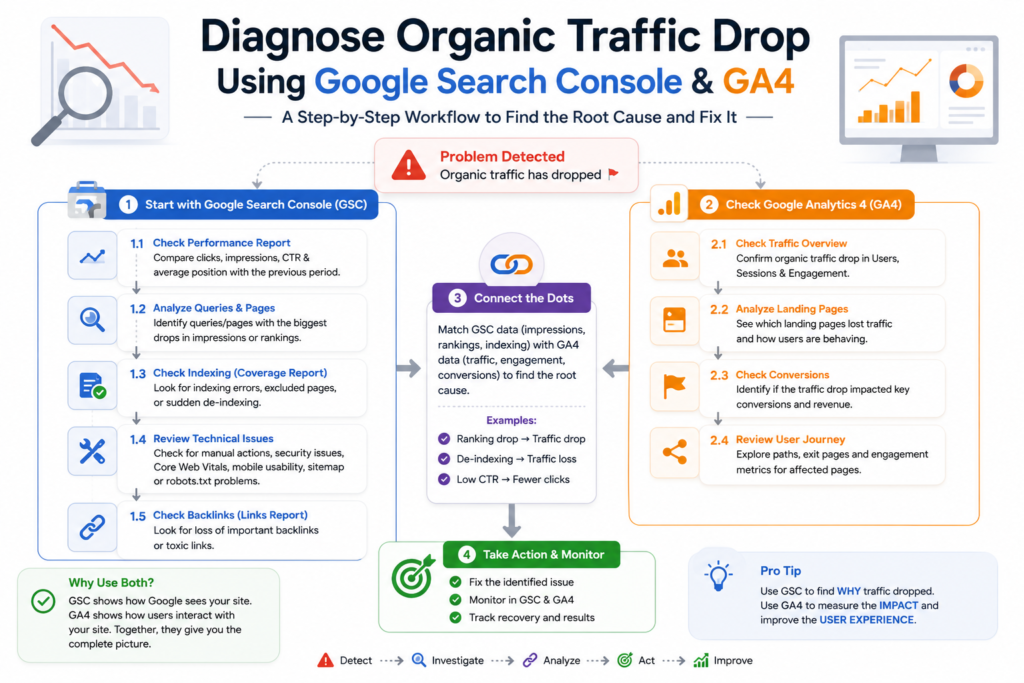
Here’s what most beginner guides miss. GSC and GA4 don’t compete with each other. They work hand-in-hand as part of the same investigation process. You won’t get the whole story by looking at just one.
Workflow 1: Looking into a traffic decline
If your organic traffic takes a hit:
- Open Search Console and compare performance reports over time.
- Spot which queries or pages have lost impressions or clicks.
- Head to GA4 and review the landing page report linked to those same pages.
- Look for patterns in engagement, bounce rates, or drops in conversions.
- Pinpoint the cause. Is it a ranking drop-off in Search Console or a user experience/content issue in GA4?
- Take action—tweak the content, address technical glitches, or polish the on-page experience.
Steps to boost weak content:
- First, open GSC and identify pages in the Performance report with deep impressions but a low CTR.
- Update the title tags and meta descriptions to align better with what users are searching for.
- Jump into GA4 and see if those same pages are attracting good engagement but not converting well.
- If engagement looks solid but conversions are lacking, the content might be engaging users but not driving them to act.
- Add a stronger call-to-action or link to a page focused on conversions.
- Keep an eye on GSC and GA4 for 2 to 4 weeks to see if CTR improves in GSC and if conversions pick up in GA4.
This type of deep tool integration sets true search performance and SEO reporting apart from just using a basic SEO checklist. It’s what agencies include in client audits and what independent bloggers can apply to their sites once they understand the process.
Steps to Link GA4 with Google Search Console
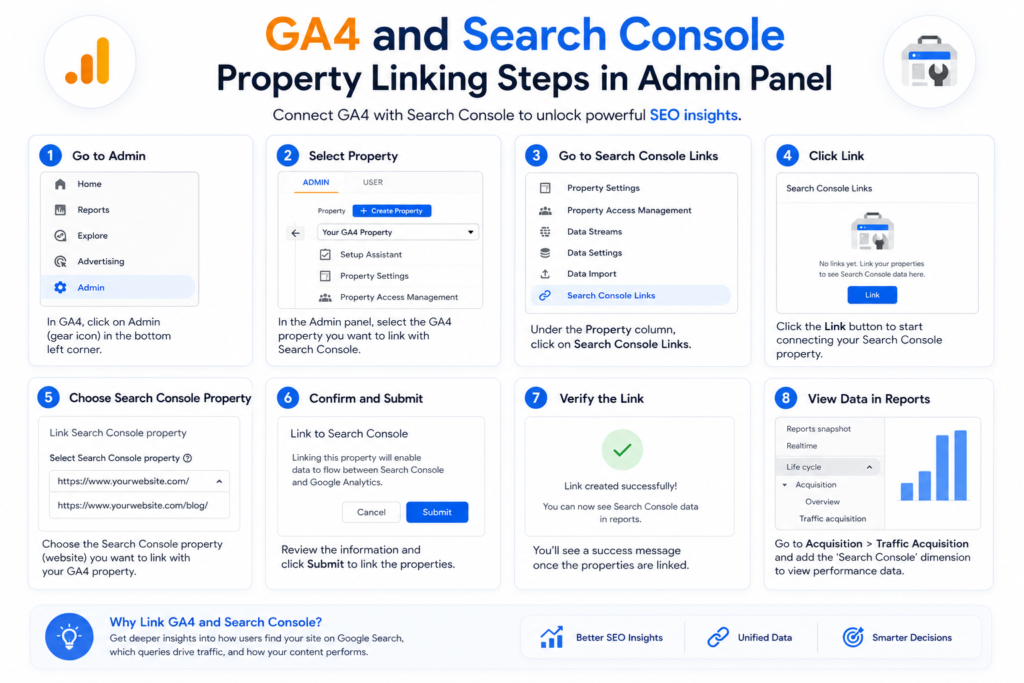
Understanding the GSC vs GA4 difference also means knowing when to connect the two. Connecting these two tools allows you to view Search Console metrics like queries, clicks, and impressions in GA4’s Acquisition reports. This can help anyone new to GA4 and GSC integration get valuable insights.
What You’ll Need:
- Admin access to both the GA4 property and the related Search Console property
- Make sure the Search Console property is verified for the specific domain or URL prefix you plan to link to
How to connect the properties:
- Open Admin → Product Links → Search Console Links in GA4.
- Select Link and pick the verified Search Console property.
- Choose the GA4 web data stream you want to link.
- Double-check everything and confirm the connection.
What happens after connecting:
- You will find a Search Console report under Reports → Acquisition. It will show data like queries, landing pages, countries, and devices.
- You can compare GSC search info with GA4 engagement and conversion data in one tool. However, the datasets don’t merge row by row.
Mistakes people often make:
- Connecting the wrong data stream can cause the report to show no information at all.
- Thinking that linked data means reports are unified is incorrect. GSC and GA4 calculate sessions and clicks, so their numbers won’t match.
- Overlooking that the past GSC data gets displayed starting from the link date in certain report views.
Common Misunderstandings About GSC and GA4
A lot of confusion around the GSC vs GA4 difference comes from these five persistent myths.”
Myth 1: “GA4 replaces Search Console.” This is untrue. GA4 doesn’t track indexing, crawl issues, or keyword-level ranking details. Both tools do different jobs.
Myth 2: “You need one of the two tools.” This isn’t true. If you stick to just one tool, you’re either guessing about technical SEO issues with GA4 or losing site behavior insights by skipping GSC.
Myth 3: “Search Console tracks all my website traffic.” Not correct. GSC focuses on traffic and visibility tied to Google’s organic search. It won’t show traffic coming from ads, social platforms, direct visits, or referrals.
Myth 4: “GA4 gives me keyword data.” Also false. Google encrypted most search query info back in 2013. This means neither GA4 nor Universal Analytics can show what keywords users searched. You’ll find that data in Search Console.
Myth 5: “Higher GSC impressions always mean more GA4 sessions.” This is not true. Impressions show whether people see your page in search results, not if they visit it. If your search snippet isn’t convincing enough, impressions might go up, but clicks and sessions could stay the same.
Typical Errors Newcomers Make: Comparing session counts in GSC and GA4.
Not understanding the GSC vs GA4 difference early on leads to these typical mistakes:”
- GSC and GA4 calculate their data. GSC tracks clicks, while GA4 tracks sessions using different attribution timeframes. Because of this, their numbers will rarely match up.
- Waiting to investigate the Coverage report until after rankings drop. Indexing problems often show up in GSC long before you’ll see traffic losses in GA4. Ignoring this early sign could cost you valuable time.
- Setting up GA4 conversions first without consulting GSC. It’s not possible to improve a landing page’s conversions if the page isn’t ranking or earning impressions in the first place.
- Relying on GA4’s default channel grouping and skipping GSC queries. Some sessions GA4 labels as “organic” are coming from branded searches. These branded visits tend to perform better compared to general non-branded discovery traffic.
- Forgetting to use the right property type in GSC, like URL prefix or domain property, can cause missing data. This happens when the site mixes HTTP with HTTPS or switches between www and non-www versions.
Pros and Cons Table
Here’s a quick side-by-side look at the GSC vs GA4 differences in strengths and limitations.
| Google Search Console | Google Analytics 4 | |
| Pros | Free, direct data from Google’s index; shows exact search queries; flags technical/indexing issues early | Tracks all traffic channels; measures real user behavior and conversions; highly customizable event tracking |
| Limitations | No behavior or conversion data; limited to Google Search; data sampling on very high-traffic sites | No keyword-level search data; steeper learning curve; different session logic can confuse cross-tool comparisons |
Final Thoughts
The GSC vs GA4 difference really comes down to one thing: search visibility versus user behavior. If you forget everything else from this guide, remember this: If you forget everything else from this guide, remember this:
- Turn to Google Search Console to explore search visibility questions. Look at rankings, queries, impressions, CTR, indexing, or technical SEO problems.
- Use Google Analytics 4 to check user behavior and results. Analyze sessions, engagement, conversions, and performance across traffic sources beyond search.
- Combine both tools to connect cause and effect. GSC explains “what happened in search,” while GA4 tells you “what happened next.”
Experts don’t choose between the two platforms. They use GSC to diagnose search visibility and GA4 to view actual business outcomes. When you start looking at both tools together instead of, those “why is my traffic lower”? Questions often stop being confusing altogether.
Keep Learning With TrendChaska
GSC and GA4 are just two pieces of the SEO puzzle. If you found this breakdown useful, explore more guides on TrendChaska covering technical SEO, content strategy, and marketing analytics — written the same way, straight to the point, no fluff.
Stay connected with TrendChaska for more practical SEO and digital marketing breakdowns:
📌 Follow us on LinkedIn · Pinterest · Instagram
Frequently Asked Questions
1. What is the GSC vs GA4 difference?
GSC tracks how Google Search discovers and rates your site. GA4 focuses on user actions across all traffic channels after they land on your site.
2. Is it possible to use GA4 without GSC?
Yes. But you won’t get insights like keyword rankings, indexing updates, or technical search problems, which are important for evaluating SEO performance.
3. Does Search Console track all website traffic?
No. It tracks organic traffic from Google Search. It doesn’t include paid social media ads, referrals, or direct traffic.
4. Why don’t my GSC clicks match my GA4 sessions?
GSC and GA4 count things in different ways and use different time frames for attribution. Because of this, small differences happen and are normal.
5. Is GA4 free like Search Console?
Yes, the standard version of GA4 doesn’t cost anything. But there’s GA4 360, which is a paid option for businesses needing more data capacity.
6. Can GA4 tell me which keywords bring traffic?
No, GA4 doesn’t let you see keyword-specific data. Search Console provides details about search query keywords.
7. How often does Search Console update data?
The Performance report in GSC runs 1 to 3 days behind. Data from the current day keeps updating for a few more days.
8. Should small businesses set up both tools?
Yes. Even small local companies gain value by using GSC to monitor technical issues and GA4 to track conversions like leads or bookings.
9. Can I link GA4 and GSC?
Yes. You can use the Admin section of GA4 under Product Links to connect both. This connection offers a limited Search Console report within GA4.
10. Which tool should I check first if traffic drops?
Begin with Search Console to check for indexing or ranking problems. After that, use GA4 to understand user behavior changes.

Nidhi Patel is an SEO and digital marketing content strategist focused on AI SEO, content marketing, blogging, and personal branding. Through TrendChaska, she shares practical digital marketing insights, SEO strategies, and AI tools for beginners, students, and small businesses in India.