
Canva or Figma: which design tool should marketers choose? Compare features, pricing, AI tools, and real use cases to pick the right one for your workflow.
Introduction
You’re juggling a client meeting in an hour, a social media schedule overdue by three days, and a landing page design still waiting on feedback. You sit down, open your laptop, and face two options: Canva and Figma. Which tool helps you tick off your tasks quicker?
If you’ve ever felt unsure about what to choose, you’re not the only one. Marketing students, freelance workers, and agency owners often ask this question when putting together their toolkit for the first time. It makes sense to ask. These platforms might look alike with their flashy designs, drag-and-drop tools, and tons of templates, but they’re meant to do different things.
Picking the wrong one isn’t just about losing money on a subscription. It also eats up hours of your week. You either end up struggling with a tool that doesn’t fit your needs, or you pay for options that you’ll never even use. For marketers, this choice can change how you create an Instagram post or even affect whether a client feels confident in handing over their brand. That’s the real weight behind the decision.
This guide compares Canva and Figma from a marketer’s point of view, not from a UI designer critiquing precise vector tools. It focuses on actual features, pricing details, workflows, and real-life situations you’re likely to face—whether you’re a freelancer working solo, a student creating a portfolio, or an agency owner growing your creative team. So let’s get into what actually separates once you look past the surface.
By the time you finish, you’ll know which tool suits your needs, or if using both makes sense.
What is Canva?
Canva started in Australia in 2013. Melanie Perkins, Cliff Obrecht, and Cameron Adams created it. They had a clear vision: design tools should be easy enough for anyone to use. Back then, this idea seemed risky. Adobe’s design tools ruled the market, and they were so hard to learn that most people without design skills stayed away.
After more than ten years, Canva has become one of the most popular platforms for creating visual content. It helps everyone, from students working on school presentations to big companies running global ad campaigns.
Main Features
Canva’s main advantage lies in its vast collection of templates. These templates cover everything from social media graphics and presentations to resumes, videos, and posters. Alongside templates, it also provides:
- Easy drag-and-drop tools that need no coding experience or design knowledge
- Tools like Brand Kit to save fonts, logos, and brand colors in one spot
- Access to stock photos, videos, graphics, and audio within the platform
- Magic Studio, which is Canva’s set of AI tools for creating images, writing, and editing
- A simple resizing feature to fit designs to different platforms with one click
- A Content Planner to schedule social media posts straight from Canva
- Features for teams, like shared folders, approval options, and commenting
These features usually come up first whenever someone compares Canva to Figma.
Who Should Use Canva
Canva helps people make tons of visual content fast without messing with tricky technical stuff. This makes it a good choice for social media managers, small business owners, content creators, students, and marketing pros who want a workflow that’s quick and works “well enough,” rather than worrying about tiny pixel details. This is exactly the crowd that usually leans toward Canva when weighing Canva or Figma.
What’s Great About It
- Super easy to use even if you’re new to it
- A huge library of templates saves time on creating stuff.
- Perfect for social posts, presentations, and marketing materials
- Built-in AI features make creating content faster.
- Budget-friendly for both individuals and small teams
Where It Falls Short
- It’s not ideal to use for exact UI/UX or detailed product design tasks.
- You don’t get much control over pixel-perfect layouts compared to pro design tools.
- Depending too much on templates might make your designs feel repetitive or plain.
- Premium brands and AI tools are available if you pay for them.
Keep these limits in mind before settling the Canva or Figma question for a technical project.
What is Figma?
Figma started with a different challenge. Dylan Field and Evan Wallace created it and launched it in 2016. They wanted to fix a big headache for UX and product teams: design files stuck on one computer, making every update a mess with exporting and tracking versions. This backstory matters a lot once you start comparing directly.
Figma brought design to the browser. This allowed several people to edit the same file at once, much like how Google Docs made writing together easier. That game-changing move turned Figma into the go-to tool for UI/UX designers, product teams, and even in-house marketing groups. These teams often need to work with developers.
Adobe tried to buy Figma in 2022 through a deal worth about $20 billion. However, the deal collapsed in December 2023 after regulators in the UK and EU raised concerns. Since then, Figma has stayed independent and will become a public company in 2025.
Features
- Tools using vectors to create exact layouts
- Reusable parts and design systems for consistency
- Auto Layout helps to create responsive and adjustable designs.
- Let’s work together as a team at the same time, like editing a shared doc.
- Prototyping features to show how user flows look and work
- Dev Mode offers developers clear specs and simple code snippets.
- FigJam works as a built-in space to brainstorm and plan ideas.
This toolset is usually what tips the scale toward Figma for product teams.
Strengths
Figma works best when teamwork and precision are more important than speed. Teams use it to design landing pages, app interfaces, wireframes, and structured design systems that everyone, including developers, can refer to. It’s a big reason the Canva or Figma debate often favors Figma among design teams.
Challenges
- Learning how to use it feels harder than Canva if you’re not a designer.
- It has fewer pre-designed marketing templates compared to what Canva offers.
- Might be too much if you need a simple social media graphic
- Costs can increase fast for bigger teams with the Organization or Enterprise plans.
These challenges are usually why non-designers lean back toward Canva in the Canva or Figma debate.
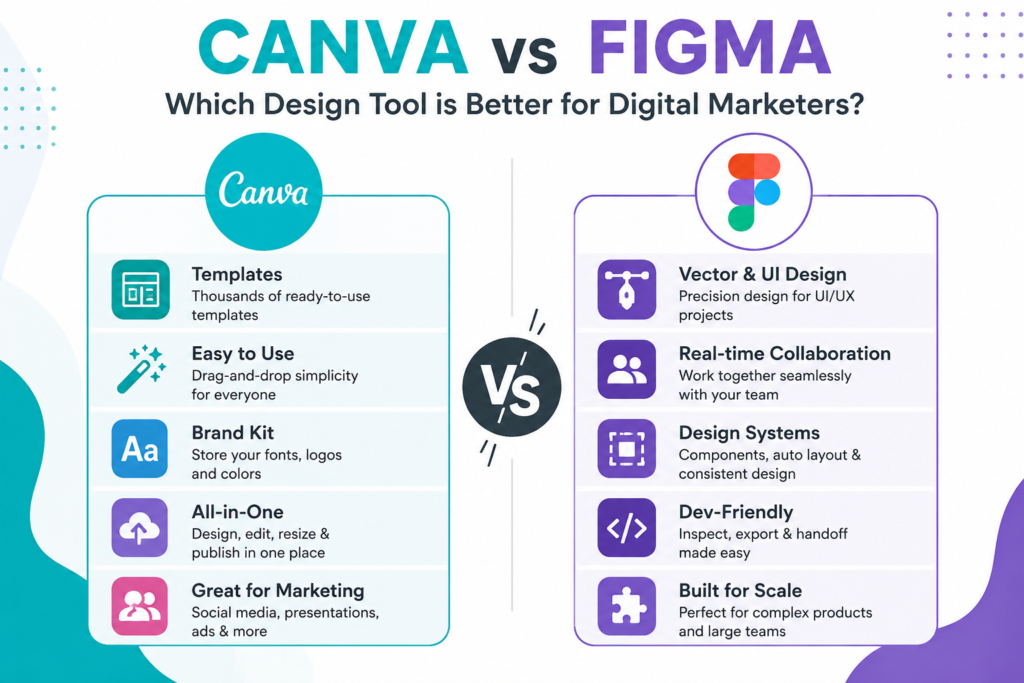
Canva vs Figma: Quick Comparison Table
Here’s a side-by-side breakdown to make the Canva or Figma decision simpler.
| Feature | Canva | Figma |
| Ease of Use | Very beginner-friendly | Moderate to steep learning curve |
| Learning Curve | A few hours to get comfortable | Days to weeks for real proficiency |
| Templates | Huge library for marketing content | Fewer, more UI/UX focused |
| AI Tools | Magic Studio (write, generate, edit) | Figma AI, Figma Make (prototype generation) |
| Pricing | Free–$25/user/month (Business) | Free–$90/editor/month (Enterprise) |
| Collaboration | Good for content approvals and reviews | Excellent real-time multiplayer editing |
| Branding | Strong Brand Kit tools | Design system components, more technical |
| UI Design | Not built for this | Industry standard |
| Marketing Assets | Excellent | Possible, but not the primary use case |
| Presentations | Strong templates and export options | Possible via plugins, less native |
| Social Media | Purpose-built for this | Not a natural fit |
| Performance | Fast for standard use, can slow with heavy files | Handles complex files smoothly in-browser |
| Integrations | Social schedulers, print, some marketing tools | Developer tools, plugins, Jira, Slack |
| Mobile App | Full-featured mobile app | Functional but limited compared to desktop |
| Export Options | JPG, PNG, PDF, MP4, GIF, and more | PNG, SVG, PDF, code snippets for developers |
| Support | Community help center, priority support on paid tiers | Help center, dedicated support on higher tiers |
| Best For | Marketing content, social media, presentations | UI/UX design, product teams, design systems |
Best Use Cases
Canva suits marketing content, social media, and creating presentations. Figma is better for UI/UX design, product team workflows, and design systems. That single line sums up most of the Canva or Figma debate for everyday marketers.
Comparing Canva and Figma’s Features
Let’s go feature by feature to settle the Canva or Figma comparison properly.
User-Friendliness
It’s not even a contest here. Canva was made for people without any design skills, and that goal is clear in every part of its interface. Figma, on the other hand, expects users to already understand things like layers, frames, or constraints. That doesn’t mean Figma is worse. It just shows both tools solve different problems. This point alone settles the question for a lot of beginners.
Built-In Templates
Canva’s library of templates gives it a big edge when it comes to helping marketers. If you need an Instagram post, a webinar slide, or even a flyer you can print, there’s probably already a template you can use to get started. Figma offers templates as well through community-shared UI kits and starter wireframes. However, these focus more on product design than on marketing materials. Templates are often the deciding factor in the Canva or Figma choice for marketers.
Collaboration
Figma allows unmatched collaboration. You can see teammates working in real-time on the same file, track their cursors, and leave direct comments—all at once. Canva also offers tools to collaborate, like shared folders, comments, and workflows for approvals. But its approach feels more like providing feedback one step at a time rather than letting everyone edit together live. Collaboration style is another major piece of the Canva or Figma puzzle.
Branding
Canva makes it easy to maintain your brand. You can upload your logo, choose your brand’s colors and fonts, and every design will use those settings right away. Figma handles brand consistency with components and shared libraries. This method offers more advanced tools for complicated design setups but takes longer to organize. Brand consistency tools matter a lot in the Canva or Figma comparison for teams.
Performance and Mobile
Canva’s mobile app works well for making quick edits when you’re on the move. This is useful if you’re managing social media from your phone. Figma has worked on its mobile app, but it mainly focuses on viewing and basic comments instead of full-on editing. Mobile usability is a small but real factor in the Canva or Figma decision.
Canva and Digital Marketing
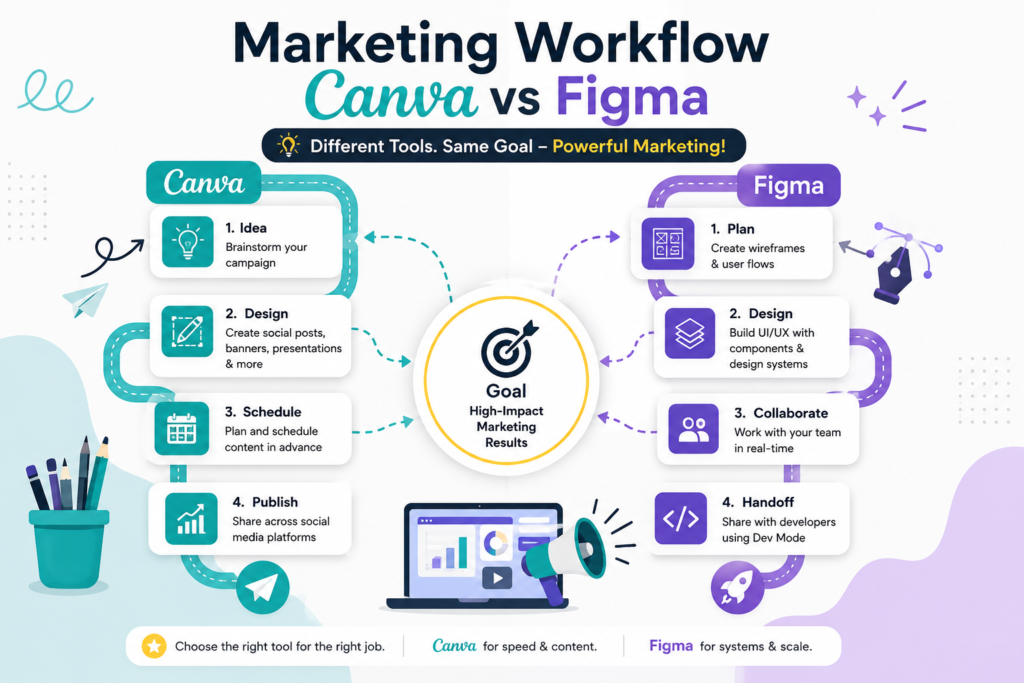
This is where Canva usually wins the Canva or Figma debate outright.
Canva is designed to help if you need to manage content on various platforms.
- Instagram: Templates already sized for posts, Stories, and Reels covers. You can drag and drop to edit them in just minutes.
- Facebook: Create cover photos, event banners, or ad designs. They are ready to export in the perfect size.
- LinkedIn: Find carousel post templates and banners that look professional without needing a designer.
- Ads: Canva lets you make ad designs for social media and display platforms. You can also adjust one design to fit different platforms.
- Email Marketing: Add header graphics and promos that slide into your email layouts.
- Presentations: Build smooth-looking slides that work well for client meetings, internal updates, or webinars.
- Videos: Edit simple videos and create ready-made ads for social media without needing extra video tools.
- Brand Kits: Maintain brand consistency across assets, which is helpful when different team members create content.
- Content Planning: Use Canva’s planner tool to schedule posts and publish straight to various social media platforms.
To handle five platforms and meet numerous weekly deadlines, a marketer benefits the most from this range of tools.
Using Figma to Boost Digital Marketing
This is where Figma holds its own in the Canva or Figma debate.
Figma takes on a lesser but still valuable role in marketing when it connects marketing efforts with product and web teams.
- Landing Pages: Marketers often team up with developers to shape landing page designs in Figma before passing them on to be coded.
- Website Mockups: Figma works well for creating detailed site wireframes and polished mockups when it comes to campaign microsites.
- Client Collaboration: Agencies can use Figma’s sharable, feedback-friendly prototypes to pitch app or web design ideas to clients.
- Wireframes: Teams use Figma in layout planning to map out designs that will turn into coded pages.
- Marketing Assets: Teams sometimes make banner ads or digital assets in Figma when their brand’s design system is already set up in the tool.
- Design Systems: Larger companies rely on Figma to ensure every visual stays uniform across both marketing materials and product interfaces.
If you collaborate often with a web or product team on marketing tasks, Figma offers an efficient place to hold those discussions.
Canva AI vs Figma AI
AI features have become a real factor in the Canva or Figma debate.
AI now sets Canva and Figma apart, with both companies putting in a lot of effort to strengthen these features.
Canva AI, part of Magic Studio, aims to be fast and easy to use. Magic Write creates captions and marketing text. Magic Media turns text prompts into images or short videos. Magic Edit and Background Remover simplify tasks that used to require tools like Photoshop. Marketers who create a lot of content can save significant time by using these features for every project.
Figma AI takes design work in a more organized direction. It helps with layout ideas, creates different design versions, rewrites UX content, and explains design details to developers. The newer feature, Figma Make, lets users turn a text prompt into a functional prototype or a basic web app. This feature brings design and development closer together.
In simple terms, Canva AI is built to create content quickly and in large amounts. Figma AI focuses on structured design tasks and makes it easier to pass work between designers and developers. Neither one is better or “smarter”; they just tackle different challenges.
AI tools on these platforms change fast, and credit systems or usage limits might not stay the same. You should check their current documentation before relying too much on AI tools in your workflows.
Comparing Pricing
Budget is often the first practical factor in the decision.
Picking based on pricing can get tricky because both platforms have adjusted their plans multiple times. Here’s an overview, but be sure to confirm the latest details on Canva’s and Figma’s pricing pages since they’ve updated their structures in the past few years.
Canva Pricing (Approximate)
| Plan | Typical Price | Best For |
| Free | $0 | Students, casual users, light personal projects |
| Pro | Roughly $13–15/month (individual) | Freelancers and solo creators needing premium assets and Brand Kit |
| Business | Roughly $20–25/user/month | Small-to-medium teams needing shared brand assets and approvals |
| Enterprise | Custom pricing | Large organizations needing advanced security and admin controls |
Canva provides an optional AI Pass as an extra add-on for those with extensive AI needs. This is separate from the standard plans.
Figma Pricing (Estimated)
| Plan | Typical Price | Best For |
| Starter | $0 | Solo designers, students, small personal projects |
| Professional | Roughly $12–16/editor/month | Small design teams and freelancers doing client work |
| Organization | Roughly $45–55/editor/month | Larger teams needing design systems and org-wide libraries |
| Enterprise | Roughly $75–90/editor/month | Large enterprises needing SSO, compliance, and dedicated support |
The main point: Canva costs less overall for solo marketers or small teams making lots of content. Figma’s free plan and Professional option work well for design-focused freelancers, but prices rise as soon as you require features for larger organizations. This pricing gap is a big part of why the Canva or Figma choice depends on team size.
Learning Curve
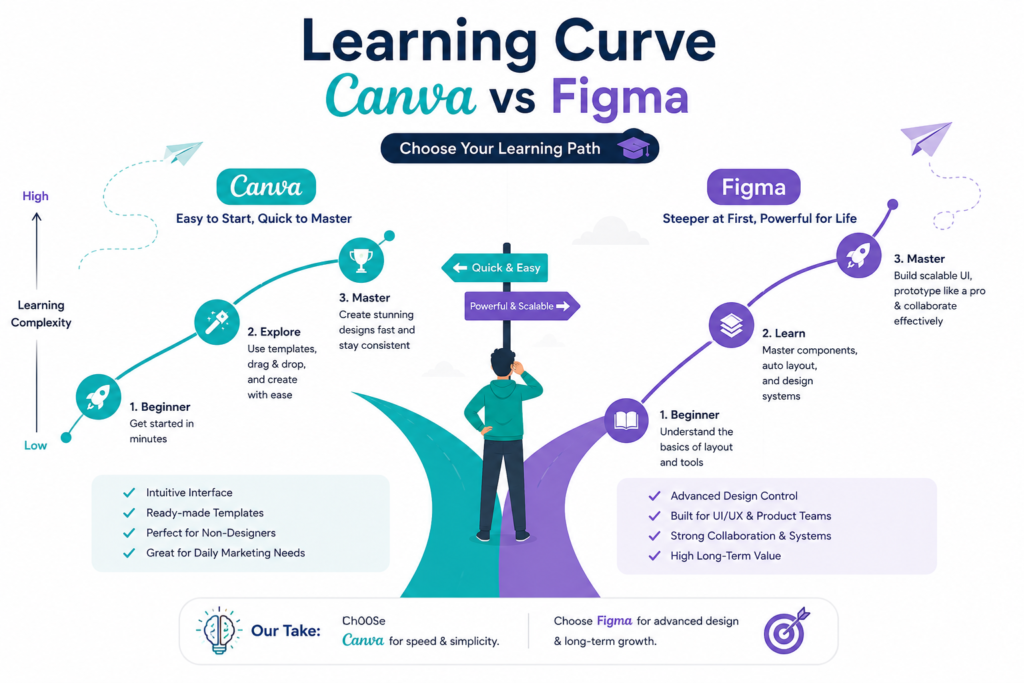
Time investment is another practical angle on the Canva or Figma question.
If this is your first time using a design tool, Canva will seem easy to use right away. Templates help you get started, and there isn’t much you can mess up. Most users get the hang of things after just a few hours.
Figma takes more time to get the hang of. It introduces ideas like frames, auto layout, and components that aren’t obvious. The interface rewards those who take time to grasp design basics while exploring the tool. You’ll need days or even weeks to learn it well if you aim to go beyond just simple edits.
Who should start with Canva: Marketing folks juggling different tasks, social media managers, students pulling together quick portfolios, small business owners, or anyone who cares more about speed than accuracy.
Who should start with Figma: People planning a career in UI/UX, marketers working with product or dev teams, and agency pros presenting detailed and interactive designs for websites or apps to clients.
Real-Life Examples
These scenarios make the Canva or Figma choice much more concrete.
- Are you a freelancer working on social posts, pitch decks, or marketing designs for small businesses? Canva will handle most of these tasks and help you save money on subscriptions.
- Are you a student studying marketing, an MBA, or a BBA and trying to build a portfolio to land internships? Learning Canva makes you ready to produce content. Adding some basic Figma know-how can set you apart by preparing you for positions connected to product marketing or UX-related work.
- Do you manage social media for one or several brands? Canva offers templates, resizing features, and a content planner that can become your go-to tool every day.
- When you run an agency that creates marketing content and works on web or app design for clients, you’ll need both tools. Canva helps the marketing team, while Figma works better for anything related to web or product design.
- In a startup where marketing, product, and design often mix together, Figma becomes a key tool. It keeps everyone on the same page with a shared design system rather than a mess of files.
Pros and Cons
Seeing the pros and cons side by side makes the Canva or Figma decision clearer.
Canva
| Pros | Cons |
| Beginner-friendly interface | Limited precision for complex layouts |
| Huge, marketing-ready template library | Can look generic without customization |
| Strong AI tools for content creation | Advanced features locked behind paid tiers |
| Affordable for individuals and small teams | Not built for UI/UX or product design |
| Great mobile app for on-the-go editing | Collaboration is good, not best-in-class |
Figma
| Pros | Cons |
| Industry-standard for UI/UX design | Steeper learning curve for non-designers |
| Best-in-class real-time collaboration | Fewer ready-made marketing templates |
| Powerful design systems and components | Can feel like overkill for simple social graphics |
| Strong developer handoff tools | Costs climb quickly at higher tiers |
| Growing AI and prototyping capabilities | Mobile experience is more limited than desktop |
Best Situations To Use Them
This breakdown makes the choice practical for different roles.
- People managing social media or making content: Canva works great.
- Freelancers creating projects for clients: Canva is helpful, but knowing Figma adds value.
- Designers focused on UI and UX or product teams: Figma suits this work best.
- Students studying marketing to build skills: Use both tools, starting with Canva.
- Agency leaders with mixed teams: Use both and assign tools based on the team’s tasks.
- Startups doing both product and marketing tasks: Figma is better, but Canva helps with pure marketing.
- Small business owners creating their own content: Canva fits their needs well.
Mistakes People Often Make
A lot of these mistakes come from rushing the Canva or Figma decision.
A big mistake people make is picking a tool because it’s popular instead of looking at what the job needs. Figma might have a good reputation in design circles, but sometimes marketers lean toward it even though Canva would handle their daily tasks better.
Another slip-up happens when people think they need to be experts in a tool before it’s useful. You don’t have to know every piece of Figma’s component system to use it well. The same goes for Canva. You can skip most of Canva’s fancy AI options and still create solid marketing content.
Costs for team plans also rise faster than people expect. Before jumping into a Business or Organization plan, it’s smart to figure out how many users and how much usage you need. Assuming the cheapest paid plan will cover you long-term doesn’t work as the team grows.
Many newcomers avoid learning design basics and just depend on templates. While templates are a good place to start, knowing the basics of layout, color, and typography can help you work more quickly and better in both tools.
Final Thoughts
There isn’t a single best option here. Anyone claiming there is might not understand how these tools serve very different needs. In short, the Canva or Figma question doesn’t have one universal answer.
To create social media graphics, presentations, marketing designs, or quick visuals, Canva works better for most digital marketers. It is cheaper, easier to pick up, and designed to handle this type of work.
To focus on UI/UX design, app or website mockups, or working with product and tech teams, Figma makes more sense. It takes more time to learn, but it’s worth it for those areas.
If you want a long-lasting career in marketing in areas like product marketing, growth, or agency work, it helps to know both tools for flexibility. Begin by using Canva to create content and get comfortable. Later, add Figma to work better with others on web or product designs. Instead of choosing one tool, combining both benefits marketers the most in the long run.
Common Questions
1. Should I learn Canva or Figma first?
Use Canva first if your goal is to create marketing content fast. It is easier to learn and lets you make practical designs from the start.
2. Which tool is best to use for digital marketing?
Canva is the top choice to create things like social media posts, ads, or presentations because of its built-in templates and AI tools.
3. Which tool works better for freelancing?
Canva works well for freelancers creating marketing materials and social media content. Figma is a better pick if your freelancing projects are more about UI/UX or web design. Learning both tools can be useful for many freelancers.
4. Which tool fits agencies better?
Agencies that juggle marketing and web or product design often rely on both tools. They divide them up depending on the team or the project requirements.
5. Which tool offers better AI features?
It depends on what you need it for. Canva’s AI works better to generate things like images, written content, or quick edits. On the other hand, Figma’s AI stands out in tasks like creating structured designs or building prototypes.
6. Can Canva handle professional client projects?
Yes, it’s great for things like creating social media graphics, presentations, and branded materials for marketing. But if you’re focusing on professional UI/UX design, you’ll find that Figma is the go-to tool in the industry.
7. Do these tools change their pricing often?
They do made updates to how they price their plans several times in the past few years. It’s a good idea to visit their pricing pages before signing up.
.

Nidhi Patel is an SEO and digital marketing content strategist focused on AI SEO, content marketing, blogging, and personal branding. Through TrendChaska, she shares practical digital marketing insights, SEO strategies, and AI tools for beginners, students, and small businesses in India.