
Learn Canva for social media marketing with 15 practical design tips to create engaging content, save time, and grow your brand.
Wondering Why No One is Engaging with Your Posts?
Be real for a second. You pour your time into writing a flawless caption, press “Post,” and then… nothing.
No comments. No clicks. No reactions.
Here’s the reality: in 2026, design makes your first impression. People judge your post in under 0.3 seconds before they read your caption or click anything. If your design doesn’t grab attention, nothing else will work.
Here’s the upside. You don’t have to be a professional designer. You don’t need pricey tools. And you don’t have to hire a big agency every time you post something.
Canva for social media marketing has turned into the go-to tool for India’s smartest digital marketers. Whether it’s startups in Mumbai, small shops in Jaipur, freelancers in Bangalore, or coaches in Chennai, everyone relies on it. It’s free, powerful, beginner-friendly, and perfect for creating the kind of content Indian audiences enjoy.
This guide will share 15 design tips to change the way you use Canva for social media marketing—starting right now.
Whether you’re a business owner sharing posts on Instagram, a freelancer juggling different brand accounts, or just starting out as a digital marketing student, this piece aims to help you improve your skills.
Let’s get started.
What Is Canva and Why Should You Use It for Social Media Marketing?
Canva is a web-based graphic design tool that helps you create high-quality visuals, even if you’re not a design expert. It offers tons of templates, stock images, fonts, icons, and branding tools that you can use on your computer or phone.
When we talk about using Canva for social media marketing, it’s about way more than just “making things look nice.” Here’s what it really means:
- Building a strong and consistent brand image across platforms like Instagram, Facebook, LinkedIn, and YouTube
- Crafting content that drives action — things like story ads, infographics, carousel posts, and reel covers
- Designing at a quick pace and on a large scale without losing quality
- Working with your team live, no matter if everyone’s in different cities.
Canva helps you take an idea and turn it into a polished, results-driven post.
Why Indian Marketers Should Try Canva for Social Media Marketing
India’s social media landscape is unique. With over 20 languages, year-round festivals, a rapidly growing creator economy, and brand-conscious consumers, marketers need tools that are flexible and easy to use. This is why Canva for Social Media Marketing has become a popular choice for businesses, freelancers, and content creators across India.
1. Ready for Regional Scripts
Canva works with Indian scripts like Devanagari, Tamil, Telugu, and Bengali. It lets you make designs in Hindi, Marathi, or Malayalam without dealing with font problems. This is a big help to reach local audiences.
2. Festival Content Takes All-Year Effort
From Diwali and Eid to Pongal and Christmas, Indian marketers always need new festive visuals. Canva’s collection of templates gets updated with fresh Indian festival designs every single year. This can save you a ton of time and effort.
3. Mobile-First Approach
In India, most people rely on their smartphones. Canva’s mobile app works great for making, editing, and sharing content through your Android or iPhone. It’s a handy tool to use while you’re out and about creating content.
4. Affordable Option for Small Businesses
Canva’s free plan has enough features to be super useful. If you upgrade to Canva Pro, which costs roughly ₹4,000 a year, you unlock premium templates, background remover, a Brand Kit, and more. It’s much cheaper than paying a designer for every campaign.
5. Expanding Indian User Base Thousands of Indian educators and template designers are now part of the Canva community. You’ll always find help since tutorials in languages like Hindi and Tamil are easy to access.
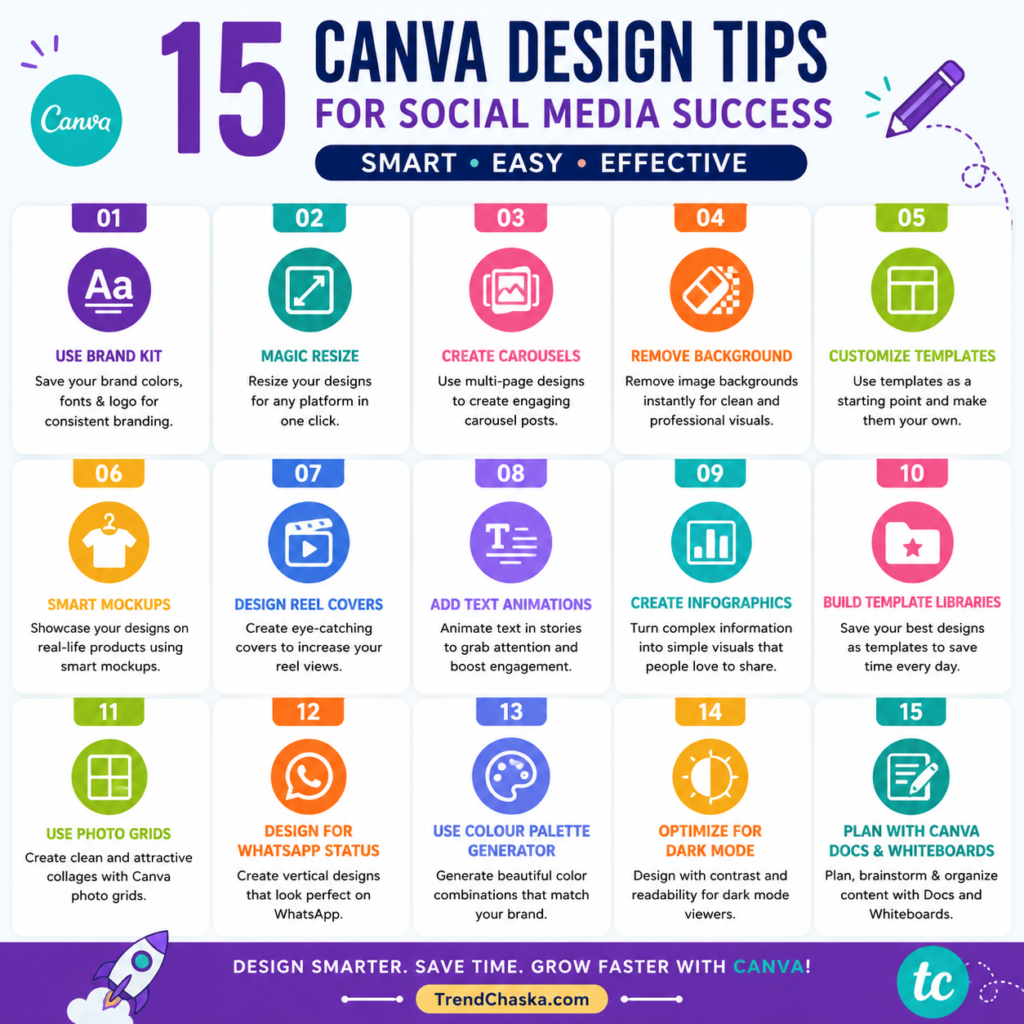
15 Canva Design Tips for Social Media Success
This is where the fun begins. These aren’t your typical overused tips. These are hands-on, impactful tricks to boost your content.
Tip 1: Use the Brand Kit to Create a Consistent Look
One thing people often overlook in Canva for social media marketing is the Brand Kit.
It lets you save your brand colors and fonts in one spot. You don’t have to choose your primary color (like saffron orange), secondary color (maybe ivory or navy), or fonts over and over again. Set them up once, and you’re good to go.
Why this is important: Sticking to the same style makes your brand feel trustworthy. When people notice the same colours and fonts in all your posts, they link that design with your brand. It’s like wearing a uniform — it gives off a professional vibe right away.
How to use it: Head over to Brand → Brand Kit. Enter your hex codes, add your logo, and pick your preferred fonts. That’s it. Now, every time you create a new design, it will use these settings from your kit.
Real-World Example: A fashion boutique in Delhi used Brand Kit to make sure that all their Instagram posts — like product pictures and holiday greetings — stayed consistent with their signature rose-gold theme. In just three months, they built a well-recognized and unique aesthetic that their rivals found hard to copy.
Tip 2: Use the Magic Resize Tool to Post Across Platforms Like a Pro
You create an amazing Instagram square post, but now you also need a story version, a Facebook banner, and a LinkedIn graphic. Without Canva, you’d have to design them all .
With Canva, to market on social media, it takes just one click.
The Magic Resize feature (in Canva Pro) changes your design size to fit different platforms. It adjusts the layout instead of just stretching or cutting things off.
Quick Tip: After resizing, check your design. Text close to the edges might need a little tweaking. Still, it saves you about 70–80% of your time.
Real-World Example: An edtech startup in Hyderabad redesigns every announcement post into six different formats. It creates versions for an Instagram post, an Instagram story, a Facebook post, a LinkedIn post, a YouTube thumbnail, and a WhatsApp status. The entire process takes less than five minutes.
Trick 3: Make Eye-Catching Carousels for Instagram and LinkedIn
Carousels grab attention and drive high engagement rates in 2026. They encourage users to swipe, signaling the algorithm to promote your content to a wider audience.
Canva for social media marketing simplifies carousel creation using its multi-page canvas tool.
The trick: Make your first slide a “hook.” Start with a bold question, a surprising fact, or a strong statement that grabs attention right away. Use the rest of the slides to provide value, and always end with a clear CTA on the last slide.
Tips to design better slides for Indian viewers:
- Choose text and background colors that make reading easy, even on phones in bright sunlight.
- Aim for 5 to 8 slides. Longer carousels often lose viewers after the fifth slide.
- Add arrows or prompts like “swipe →” on the first slide to guide readers.
Example From Real Life: A financial advisor based in Pune designed a 7-slide carousel called “5 Common Mistakes Indians Make With Their Savings” using Canva’s ready-made templates. The post ended up getting shared four times more than his typical single-image ones.
Tip 4: Try Canva’s AI Tool to Remove Backgrounds
Clean product pictures with white or transparent backgrounds often look way more professional than using messy real-world ones.
Canva’s Background Remover (a Pro feature that works with just one click) makes this super easy—it performs in seconds what earlier required Photoshop skills to master.
To Indian marketers in particular, this feature is useful to create:
- Product businesses — take out the backgrounds from product photos snapped on your phone
- Personal brands — polish up speaker photos or headshots for LinkedIn profiles.
- Festival posts — put yourself or your product on festive-themed templates.
Real-World Use Case: A saree seller from Kolkata was using product photos taken on her kitchen table. Once she removed the backgrounds and added clean gradient backdrops in Canva, her Instagram engagement almost doubled.
Tip 5: Use Canva Templates, But Make Them Your Own
Think of templates as the starting line, not the final stop.
Lots of beginners using Canva for social media marketing make the same error. They stick with the template as it is. The problem? If you’re doing that, so are tons of other people. Your brand just blends into the crowd.
Here’s how you stand out: Choose a template because you like the layout, not the colors or fonts. Then make it yours by changing:
- The colors to match your brand
- The fonts reflect your style.
- Photos or product images with your own
- Text and CTAs that align with your message
Steps to Make It Unique:
- Replace the placeholder text with your specific content.
- Update the colors to align with your brand’s design.
- Use your own or brand-friendly photos instead of stock images.
- Add your logo by using the Brand Kit feature.
- Adjust the spacing if it looks off.
Tip 6: Try Canva’s Smart Mockups for Promoting Products
If you offer digital or physical products, Smart Mockups inside Canva can make a big difference in your marketing.
You can showcase your design or product image using lifelike mockups like a phone screen, a coffee mug, a t-shirt, a billboard, or even a book cover. This means you won’t need extra mockup software.
To market on social media with Canva, you can display your product in real-life scenarios without hiring a professional photographer.
Real-World Example: A merch brand in Bengaluru uses Canva mockups to present their t-shirt designs on models before production begins. This helps them cut down on photoshoot costs and test their designs .
Trick 7: Create Covers for Reels and Shorts, Not Just Feed Posts
Many Indian marketers skip over the importance of Reel cover images. That’s a big miss.
Your Reel cover shows up on your profile grid and in search results. It’s like a thumbnail, and thumbnails often determine if someone watches your video or just scrolls past it.
To design with Canva on social media, pick the 1080 x 1920px template for Reels or Stories. Make your cover stand out by doing these things:
- Add text that explains what the video is about
- Use your brand colors.
- Include a strong and clear image.
Quick Tip: Stick to a regular style for your Reel covers. Use the same font, a matching color strip at the bottom, and a repeatable layout. This helps your Instagram grid look polished and planned.
Tip 8: Add Text Animations to Instagram Stories
Static stories aren’t as popular anymore. Text stories with animations get way more taps and replies.
Canva offers a free animation tool that helps you add effects like fade, rise, typewriter, pop, and tumble. These effects make your stories exciting without needing any video editing knowledge.
Steps to try it for social media marketing using Canva:
- Design your story.
- Choose a text box.
- Tap “Animate” in the top menu.
- Pick an animation effect.
- Save it as an MP4 instead of a PNG.
Real-World Example: A real estate agent from Nagpur began sharing animated “New Listing” stories featuring moving text and property details. In just one month, his story views grew by 60%.
Trick 9: Make Infographics to Teach and Get Shared
Teaching people is key to growing on social media . A good infographic is one of the best ways to share knowledge.
Using Canva in social media marketing, you can find lots of infographic templates in one category. These are perfect to use in:
- “Did You Know” content
- Simple how-to walkthroughs
- Industry facts and figures
- Comparisons like Before and After
Tips to Design Infographics People Share:
- Stick to 3 to 4 colors max. Less is often better.
- Keep the text short. Let the visuals do most of the work.
- Try using icons in place of bullet points when you can.
- Include your website or social handle at the bottom. This boosts branding and directs traffic.
Example in Action: A nutritionist based in Chennai shares infographics like “10 Indian Foods Rich in Protein” every month. Each post gets saved over 500 times, increasing reach without spending on ads.
Trick 10: Make a Template Library to Save Time
Here’s a hack that many top social media managers rely on: create a personalized template library in Canva.
After designing a post style you like — whether it’s a quote graphic, a product spotlight, or a carousel with tips — save it as a Canva template for your brand. Next time, just pull it up, change the text or visuals, and it’s ready to post.
Ideas to turn into templates:
- Motivational quotes you post weekly
- Announcements for product launches
- Seasonal greetings (make one template and update visuals for different festivals)
- Posts showcasing testimonials or reviews
- “Did You Know” fact posts
This approach is one of the easiest ways to use Canva for social media marketing. In just a couple of hours, you can prep an entire week’s content.
Trick 11: Try Canva Grids to Make Neat Photo Collages
Indian audiences love photo collages—they work well to showcase things like:
- New festival collections
- Before-and-after shots
- Event highlights
- Product ranges
Canva’s Grid feature allows you to create clean and symmetrical collages in no time. Just drag your photos into the grid boxes, and Canva makes sure everything lines up perfectly with the right proportions.
Quick Tip: Match the look of all photos in your collage by applying the same filter or color adjustment. You can do this through Canva’s photo editing tools.
Trick 12: Design Properly to Use on WhatsApp and Status Updates
The most popular social app in India isn’t Instagram. It’s WhatsApp.
If you’re using Canva to market on social media, but ignoring WhatsApp, you’re missing out on a huge audience.
WhatsApp Status Dimensions: 1080 x 1920px — the exact size as Instagram Stories.
Tips to Design Better for WhatsApp:
- Make sure the file size stays below 5MB because WhatsApp compresses images a lot.
- Use bold and easy-to-read text since dark mode can make things harder to see.
- Keep crucial details away from the top and bottom 15% of your design because WhatsApp’s interface overlaps there.
- Always include your business name or contact info in a subtle way within the design.
Practical Example: A textile seller in Surat uses WhatsApp Status each morning to share updates about new stock. He creates visuals in Canva, including product previews and prices. This approach brings him more WhatsApp enquiries than all of Instagram combined.
Tip 13: Try Canva’s Color Palette Tool to Match Your Brand
Having trouble picking colours that work well together? Stop wasting time guessing.
Canva’s Colour Palette Generator lets you upload an image. It could be your product photo, your storefront, or even a mood board. The tool then pulls a matching set of five colours for you.
This tool is a game-changer when using Canva to create social media content. It makes sure your designs fit with your product photos.
How to use it: Head over to canva.com/colors/color-palette-generator. Upload your image. Grab the palette it generates. Add the hex codes to your Brand Kit.
Trick 14: Create Designs for Dark Mode Viewers
A lot of Indian users scroll through Instagram and LinkedIn in Dark Mode, so your designs should work well on both light and dark backgrounds.
Typical Issue: A white-background design might look sleek on your laptop but will seem too bright or awkward in a dark-mode feed.
Fix using Canva in social media marketing:
- Choose off-white or soft beige backgrounds instead of bright white. For example, use #FAFAF5 instead of #FFFFFF.
- Take screenshots of your designs and check how they look in your phone’s dark mode.
- Use dark or brand-colored backgrounds for stories and reels covers instead of white ones.
Trick 15: Try Canva Docs and Whiteboards to Plan Your Content
Here’s something a lot of marketers forget: Canva does more than just create social posts. It’s a tool for all kinds of content creation.
With Canva Docs, you can design polished content briefs, campaign strategies, or client decks. And Canva Whiteboards are ideal when you need to map out content calendars or brainstorm ideas.
Agencies and freelancers handling several brands can simplify everything with one tool. Your whole process, from planning to designing and posting, fits into a single platform. That’s the true advantage of Canva for social media marketing by 2026.
Expert Advice to Boost Engagement with Canva
You already know the basics. Here are some advanced tips to step up your Canva for social media marketing strategy even more:
- Focus on emotion before details. People like to share things that make them laugh, inspire them, teach them, or make them feel understood.
- Keep some breathing room in your design. Overloading a layout makes it look unprofessional. Open spaces make your work look clean and polished.
- Stick with odd numbers for design pieces. Use 3 icons, 5 points, or 7 tips for a more natural and appealing layout.
- Test your designs with two versions. Make a couple of variations in Canva and run an A/B test to figure out which one clicks best with your audience.
- Choose the right file format for downloads. Save static images as PNG files for the best quality, go for MP4 with animations, and pick JPEG if keeping the file size small matters.
Common Canva Mistakes by Indian Marketers
Even skilled creators slip up sometimes. Watch out for these mistakes to improve your Canva designs for social media marketing:
1: Overloading Fonts. Limit yourself to just 2 fonts. Use one for headlines and another for body text. Adding 4 or 5 different fonts makes your design look messy and unprofessional.
2: Overlooking Safe Zones Instagram Reels and Stories often hide the top and bottom edges with interface elements. Place the key parts of your design within the central 60% of the canvas to keep them visible.
3: Uploading Low-Quality Logos Always save and upload your logo as a PNG file with a transparent background. A pixelated or blurry logo ruins how people see your brand in seconds.
4: Failing to Save Brand Colors Guessing your brand colors by eye leads to mismatched designs. Always store exact hex codes in your Brand Kit to keep things consistent.
5: Using Too Many Gradients or Drop Shadows. Subtle gradients can add a high-end feel. Over-the-top gradients and heavy drop shadows make designs seem outdated. Stick to simple effects for a cleaner look.
6: Skipping a CTA Every marketing post needs to guide viewers on their next step. Simple prompts like “Save this post,” “Message us to get a quote,” or “Check out the link in bio” can make all the difference. A great design won’t do much if your audience doesn’t know what action to take.
Must-Know Canva Features for Every Indian Marketer
Let’s take a quick look at some of the best tools in Canva for social media marketing that you might not be using yet, but should explore.
Tool – What It Does – Best Use
Magic Resize – Adjusts design to fit different sizes – To post on various platforms.
Background Remover – Deletes background in one click – To edit product images or portraits.
Brand Kit – Stores your logos, fonts, and colors – To keep branding uniform.
Smart Mockups – Displays your design on products or items – To market products .
Canva AI (Magic Write) – Suggests text or caption ideas – To brainstorm content .
Color Palette Generator – Pulls color schemes from any image – To create visual brand identity.
Translate – Converts design text into other languages – To market in multiple languages.
Canva Scheduler – Publishes on social media – To plan and manage content.
Canva Docs – lets you create documents or slides – To prepare reports or plan content.
Photo Filters – Gives photos a uniform style – To enhance the look of your feed.
Conclusion: Use Canva to Design Smarter Content
Social media platforms in India are louder than ever before. Millions of posts flood these spaces every single hour, and only striking visuals and crafted designs manage to grab people’s attention.
Canva for social media marketing is more than just a tool—it works like your strategy partner. It allows you to create and maintain a professional look without spending much, and connect with your audience in ways that words cannot.
You don’t need to dive into all 15 tips . Pick a couple to start with. Try using the Brand Kit, experiment with the carousel strategy, or play around with the Magic Resize tool. Build it into your routine first. Add the rest as you go.
The top marketers on Indian social media right now don’t have the biggest wallets. They just have the sharpest sense of design and a set of smarter tools to back it up.
Now you’ve got both.
Ready to Step Up Your Marketing Game?
At TrendChaska , we simplify the most recent marketing tools, trends, and strategies for Indian freelancers, business owners, and marketers. No fancy terms. Just real workable advice.
Sign up for TrendChaska to get weekly marketing tips you can use right away.
📲 Check us out on Instagram @_TrendChaska_ to discover design tricks, Canva shortcuts, and fresh content ideas.
🌐 Head over to TrendChaska.com
to find more resources like this.
In the world of Indian digital marketing, staying ahead isn’t just a choice. It’s what keeps you in the game.
FAQs: Common Questions
Q1. Can Canva be used for free to market on social media in India?
Yes! Canva’s free version offers plenty of features and works well to handle most basic social media tasks. It provides access to thousands of ready-made templates, simple photo edits, and standard design tools. Canva Pro, which costs around ₹3,999 to ₹4,499 a year, adds advanced tools like Magic Resize, Background Remover, Brand Kit, and premium templates. It’s a great choice if you’re a marketer aiming to step up your game.
Q2. Can I use Canva on my phone to manage social media?
Of course. Canva works great on phones and has a solid app for both Android and iOS users. You can do things like edit templates, adjust sizes, and even schedule posts right from your phone. This makes it perfect for India’s mobile-first audience.
Q3. How does Canva stand out from Photoshop in creating social media content?
Canva focuses on making social media design quick and simple. It’s user-friendly and designed for efficiency. Photoshop gives you advanced tools and greater control, but it takes time to learn and comes with a high price. Most Indian marketers and small business owners prefer Canva because it delivers quick results without needing any prior design skills.
Q4. Does Canva support creating social media posts in Indian languages?
Sure! Canva works with many Indian scripts like Hindi (Devanagari), Tamil, Telugu, Kannada, Marathi, Bengali, and Gujarati. You can type in these languages, pick fonts that match, and design bilingual content without much effort. This helps a lot when creating regional marketing campaigns.
Q5. What are the ideal Canva template sizes to use on Indian social media?
These are the typical sizes used on Indian platforms:
Instagram Post: Use 1080 x 1080 px for squares or 1080 x 1350 px if it’s a portrait.
Instagram/Facebook Story: Stick with 1080 x 1920 px.
YouTube Thumbnail: The size needs to be 1280 x 720 px.
LinkedIn Post: Go with 1200 x 627 px.
WhatsApp Status: 1080 x 1920 px works here.
Facebook Cover: Keep it to 820 x 312 px.

Nidhi Patel is an SEO and digital marketing content strategist focused on AI SEO, content marketing, blogging, and personal branding. Through TrendChaska, she shares practical digital marketing insights, SEO strategies, and AI tools for beginners, students, and small businesses in India.