
Learn how your WordPress site’s speed really matters. Simple fixes can make your website faster, with the needed concern of happy visitors.
Introduction
You hit your website, and there it is — that couple of seconds of slowness before anything even comes up. Those few extra seconds, your visitors are also noticing them, and some of them leave before the page is even done rendering! A website slow to load feels frustrating alone, but quietly steals traffic, sales, and search rankings from you. This is the kind of article you will find if you have typed into Google “Why is my WordPress with a loading spinner at 11 pm on my PC”
WordPress website speed is not one of those abstract ‘technical maths’ numbers that only the developer community cares about. That difference between someone reading what you blogged and someone hitting the back button. The good news is that most of the speed problems with your WordPress website stem from just a few common culprits, and nearly all are issues you can resolve yourself without having to pay a developer or rebuild from scratch.
In this guide, we go through why speed even matters with websites, how to measure it (for real), what will probably be slowing your site down, and what you need to do about that — in simple English without the jargon.
Why WordPress Website Speed Matters
The first and most obvious is that people are impatient. For visitors not that up to scratch, if your homepage takes five or six seconds to come into view, you’ll lose a big chunk of visitors who won’t stick around to find out what you do. That is traffic you paid for (via ads, SEO, or social) leaving out the door.
Then there is the search engine side of things. For example, Google has been including page experience and loading performance in rankings for years thanks to the Core Web Vitals — a suite of metrics that track how quickly a page loads, how soon it becomes interactive, and overall stability as it loads. No, a sluggish WordPress website does not instantly fall into the depths of search engine results, but when two pages are providing the very same material, the one with faster page speed typically has an upper hand over its rival.
Then there is the human element that is often easy to lose sight of during technical configurations. A fast, smooth website feels professional. A slow method no one cares about — even if the content is amazing. Website loading speed is a crucial part of first impressions, which are made in seconds.
How To Check Your Current Website Speed
Before making any changes, figure out exactly where you are. Guessing is time-consuming, and “it feels slow” isn’t a number you can optimize against. Instead of a gut feeling, a fast and simple measurement of your WordPress website speed gives you something tangible to compare against.
Starting with Google PageSpeed Insights is the most practical. Just enter your URL, and it gives you a website speed score and tells you the exact problems with your mobile & desktop versions of the site. Since it uses Google’s own Lighthouse engine, the results don’t lie; they are what actually matters in SEO.
Google Search Console is also a good place to check, especially the Core Web Vitals report. It demonstrates how actual users are experiencing your site over time—not just a single test result, which is significant due to performance variances based on device, connection, and location.
Things you should look for when reading these reports:
- Your score on mobile compared to desktop (Mobile is always worse; not only does the speed of a mobile website matter the most now because the traffic comes mostly from phones).
- Individual issues that are flagged, such as «eliminate render-blocking resources» or «properly size images»,
- Server response time (often called “Time to First Byte”
Stop worrying about achieving a perfect score of 100. Shoot for gradual, meaningful improvement, not some number that is probably never going to be perfect depending on your theme and plugins.
What Makes WordPress Sites and Blogs Slow?
This is why experience weighs more than theory. Well, after reviewing countless underperforming sites, the same problems are repeated, and they are rarely what website owners expected.
- Cheap or overloaded hosting. This is the one that people forget about more than anything else. Your website speed will never be fully resolved, even with the best-of-breed plugins, if your site is hosted on a budget shared hosting account along with tens to hundreds of other domains. The server itself has become the bottleneck.
- Bloated themes. Most WordPress themes — especially multipurpose ones that come with every feature under the sun loaded in — will load much more code than an average page needs. You may be using 10% of a theme’s functionality, but you are paying for the other 90% that is being loaded with every single page to drag down website speed.
- A large number of plugins or badly coded ones. It’s not really the number of plugins; it’s what they do in the background. One badly written plugin can damage the speed of WordPress more than ten good plugins, per se.
- Unoptimized images. Perhaps the single most common reason for a slow site. A photo pulled straight from a phone or DSLR can be several MBs. Scaling that up across a page with ten images means a visitor will have to download tens of megabytes before they can see any content on the page.
- No caching in place. Without caching, WordPress regenerates every page from nothing — fetching the same data from your database every time somebody visits. All that means is unnecessarily doing the same kind of work over and over again, which is something you can fix easily to speed up your WordPress website out of all the possible fixes.
- Unminified CSS and JavaScript. Each theme and plugin adds its own styles and script files. When unoptimized, the browser has to download, parse, and execute all that code before the page can be used.
- Database bloat. WordPress functions quietly in the background and retains post revisions, spammed comments, expired transients, and vintage data over the years. An unautomated, never cleaned up database can realistically slow a WordPress website down even on the best hosted site.
- Too many third-party scripts. When you add a live chat widget, tracking pixels, social sharing buttons, or an embedded video, they will all load code from their respective servers. All of them introduce an amount of loading time you cannot fully control.
- Unnecessary redirects. Each redirect results in an additional round-trip from the browser to the server. A few chained redirects will combine to create a significant slowdown and reduce your WordPress site speed overall.
How to Improve the Speed of a WordPress Website
Now the part you arguably came for. These fixes are organized in a loose order of priority for WordPress website speed, but the exact right prioritization depends on your specific speed test results.
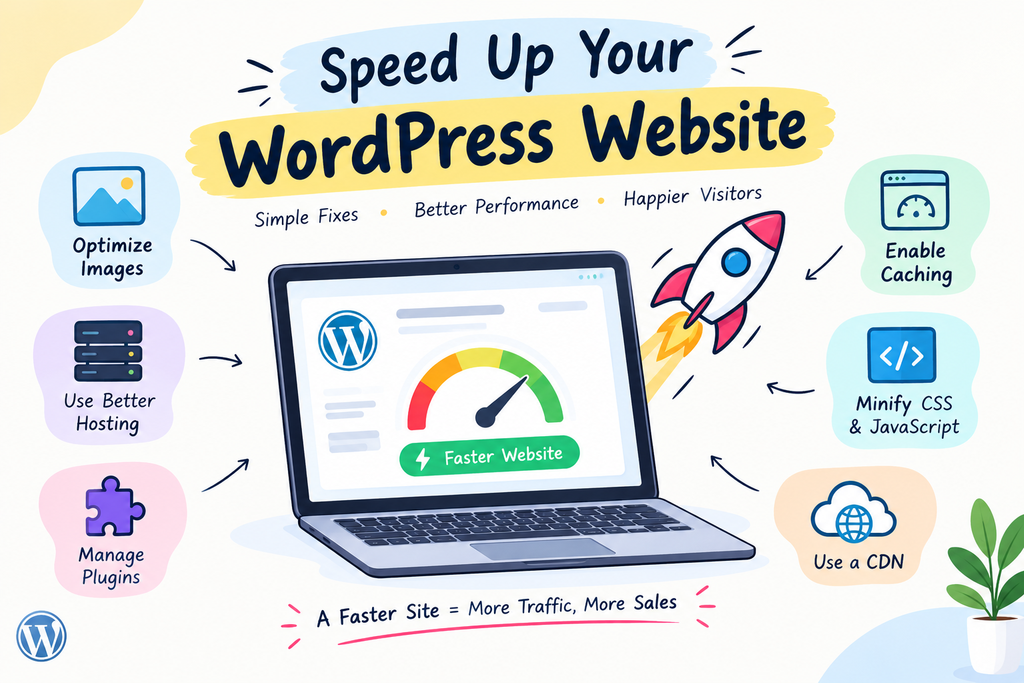
Start here. It’s generally the quickest win with minimal risk.
- Upload images at the actual size they’ll appear — don’t upload a 4000px-wide photo for an 800px-wide blog column.
- Image Compression either before or upon upload. Plugins that automate this process can achieve notable reductions in file size at almost no visible quality loss.
- Serve modern formats like WebP only where your theme and browser compatibility permits.
- Use lazy loading to only load images that are below the fold when a visitor scrolls down to them (this has been built natively into WordPress from version 5.5).
Optimizing images by size and quality is probably the quickest and biggest visible change when it comes to loading websites, especially if you have image-heavy sites like blogs or portfolios or online stores.
Use a Good Hosting Provider
This is the bedrock upon which everything else sits. A slow host→Slow w2xdDownstream speed, even with optimization
No hosting provider is ever gonna be “the best” for everyone — it really depends on the traffic levels, the budget you have, and how technical your setup is going to be. A simple brochure site with low traffic can happily run on a good shared hosting plan. An otherwise structured hosted WooCommerce store, on the other hand, usually benefits from either managed WordPress hosting or a VPS with dedicated resources. The bottom line is if you have a small site, go with hosting that makes sense for the actual size and traffic of your site rather than buying the cheapest hosting available or the highest-priced one someone recommended to you without context.
Reduce Unnecessary Plugins
Review your plugin list, then pick through it with a fine-tooth comb about what you actually use. For each, ask whether it serves a vital function or one you installed once and never looked back.
- Disable and remove plugins you are not using — even inactive plugins can impact load times and database queries.
- Find any overlapping plugins (two SEO plugins, two caching plugins) and keep one.
- Look at reviews of the plugin before installing new ones, and check when they were last updated. An outdated plugin is the most common cause of performance issues and a security risk.
A small number of carefully maintained plugins can almost always outperform a large collection of “just in case” ones — and trimming that list is one of the best ways to safeguard your WordPress speed against the ravages of time.
Use Caching
Caching allows you to store a pre-prepared version of your pages so that when someone visits a page, WordPress can simply deliver that without reconstructing all the content from the database every time. This very well might be the simplest, most effective way to speed up the WordPress website with little effort needed.
Page caching, browser caching, and some form of GZIP compression can all be enabled from a couple of clicks with most caching plugins. You might even not need a stand-alone plugin if your hosting provider offers built-in server-level caching (most managed WordPress hosts do), but be sure to check first, as you should avoid having two incompatible caching systems on your site.
Optimize CSS and JavaScript
I will not go into much technical detail, as it’s quite simple (less code that the browser has to download and process before displaying your page).
- Minify CSS and JavaScript files to remove unnecessary whitespace and characters
- Make as much as you can in one request (combine files).
- Fetch critical JavaScript when the page first attempts to render and defer or delay others until after the initial rendering of any non-essential JS.
These options are built into many caching and performance plugins, and turning them on is a simple way to see an immediate speed increase for your WordPress site. Just make sure you test your site after enabling them since this can really break layout or functionality on some themes.
Use a CDN When Appropriate
A CDN holds copies of your site’s static files (images, CSS, JavaScript) on servers scattered over the planet and allows visitors to hit them from closer locations rather than a single origin server.
Not all sites require a CDN by default. If 90% of your visitors are local and if you have fast hosting already, it may not be a great benefit. When your visitors are all over the globe or in different countries, a CDN will reduce how far data has to go to get where it is going and therefore increase loading speed on your website for those instances.
Clean Up Your WordPress Database
Your database collects clutter over the months and years: post revisions, things in your trash can, spam comments — even data from plugins you have deactivated ages ago and never deleted.
Periodic cleanup of this data — with the help of a trusted database optimization plugin, or manually from phpMyAdmin if you’re comfortable — helps queries run faster and boosts overall WordPress performance. Make sure you back up your database before using any cleanups, just in case.
Reduce Unnecessary Third-Party Scripts
You need to audit what external scripts your site actually loads: chat widgets, analytics tools, ad pixels, font libraries, social embeds. They all append a piece of information to an external server, while some take more toll on the load than others.
Retain only those that truly serve your business needs and eliminate or postpone the others. Most tracking and chat scripts are configured to load only after the content of the main page has finished, so they do not slow down the first experience or offer bad performance for your WordPress website.
Improve Core Web Vitals
Core Web Vitals measure three specific things — time it takes for the page’s main content to load (Largest Contentful Paint), how responsive the page is before interacting with it (Interaction to Next Paint, which has replaced First Input Delay), and how much layout shifts around when loading (Cumulative Layout Shift).
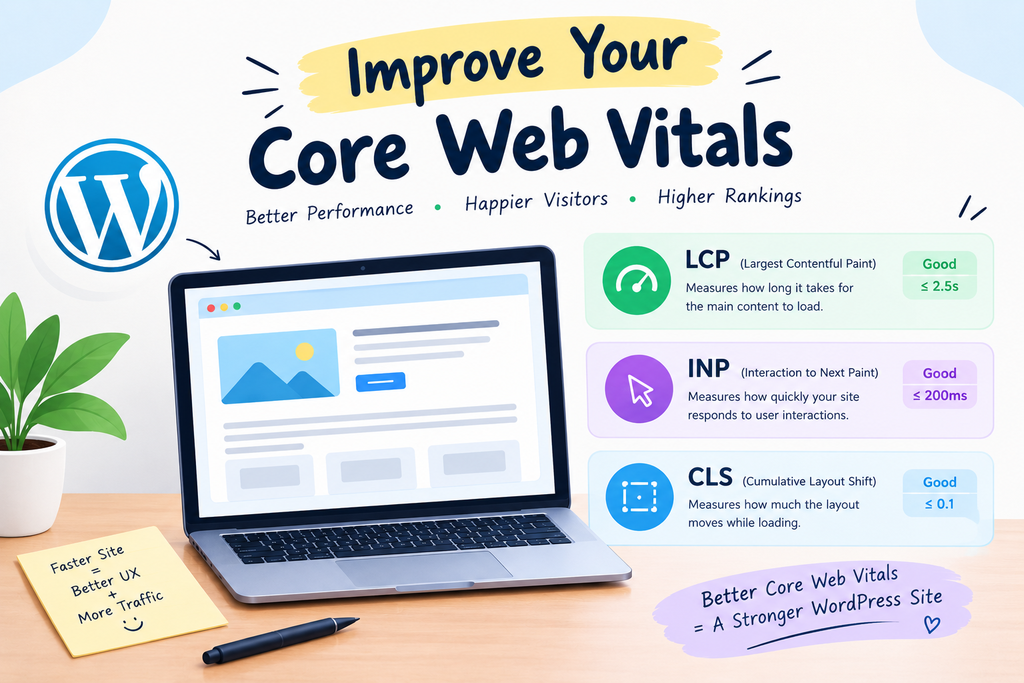
The majority of the fixes above contribute directly to these metrics and, in turn, your overall WordPress site speed. Loading speed is aided by optimized images and good hosting. Reduced JavaScript helps interactivity. By setting the width and height attributes explicitly, images and ad slots on the client side do not cause that pesky layout shifting that is hurting your layout shift score. Your Core Web Vitals are not something you do once, barely scraping by, but rather a part of your regular score that should be revisited regularly in Google Search Console.
So What Are Some Simple Things You Can Do to Improve the Speed of Your WordPress Website?
Use this as a ready reference for where your WordPress website speed is at the moment and what still needs improvement.
- ☐ Hosting — Do you have the right hosting plan for your level of traffic? Might your site need to be upgraded?
- ✅ Images — Are the images resized, compressed, and served with lazy loading in modern formats?
- ☐ Plugins — Did you clean up your plugins over the past couple of months (deactivate or remove obsolete ones)?
- ☐ Caching: Are page caching and browser caching configured correctly, and not duplicated?
- ℹ Right here, CSS/JavaScript — Are files minified and is non-critical JavaScript deferred?
- ☐ CDN — Do you have a CDN when your audience is widely dispersed?
- ☐ Database — When was the last time you cleaned up post revisions, spam, and unused data?
- ☐ Third Party Scripts — Are you only loading the scripts that you really need, and do they load after the main content?
- ☐ Core Web Vitals — Have you reviewed LCP, INP, and CLS over on Search Console this month?
- ☐ Mobile performance — Have you tested mobile website speed separately from desktop, and if so, have you noticed significant differences?
This list is one you can run every few months to prevent the small issues from piling up silently into a full-blown WordPress website speed crisis.
Five Common Mistakes Sucks in Speed Optimization
A few patterns to watch for, based on roadblocks that tend to occur when doing this after going full DIY:
- Stacking Caching/optimization plugins. In fact, they often clash — and make things worse.
- Prioritizing PageSpeed score over actual user experience. More importantly, you’d rather have a site loading in 2 seconds with a score of 85 than one tuned to the extreme for an impossible 100 that breaks features in the process.
- Ignoring mobile entirely. Testing a desktop only does not tell you anything about how your site works on the average phone with an average connection because that is actually what most of your visitors will be using.
- Making changes without testing afterward. Sometimes enabling a more aggressive JavaScript deferral or file combination will cause a menu in the theme to break, or a plugin feature to fail. Check your site after every major change.
- Thinking there is going to be one fix-all. Most of the time, WordPress website speed is not a single culprit but a series of small issues stacked up.
Final Takeaway
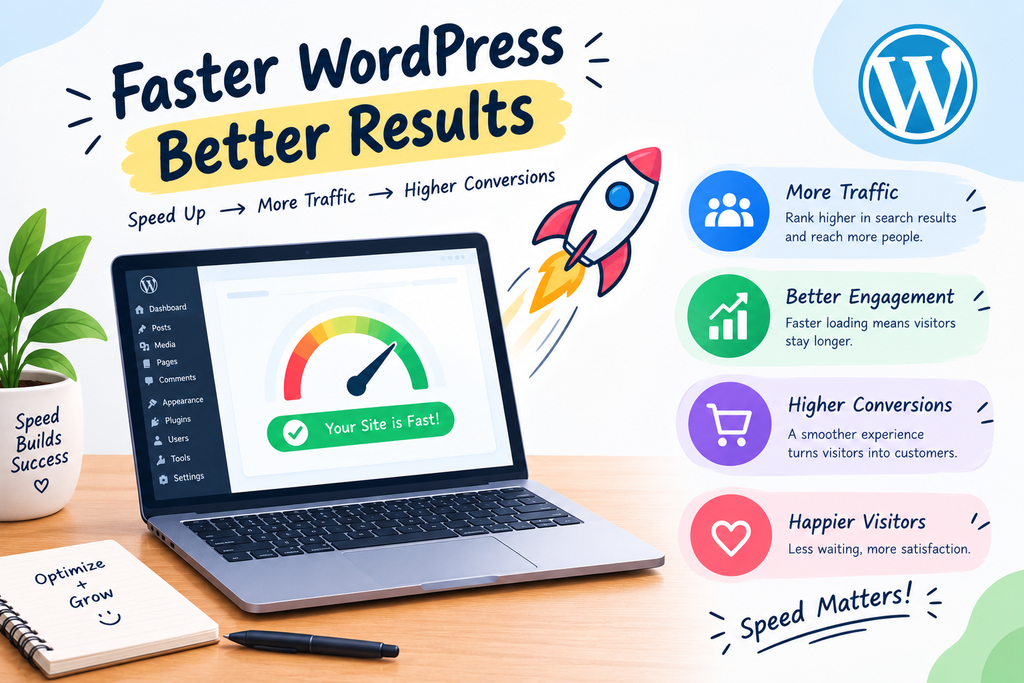
More often than not, a slow WordPress site is not due to one catastrophic issue — but several factors that collectively end up harming its performance: oversized images, an underpowered hosting plan, too many plugins doing very little, and a database that hasn’t had any TLC for years. The solution itself is simple enough, but simply checking instead of guessing takes a little methodical work.
You can start off by measuring WordPress website speed with PageSpeed Insights and Search Console. Then progress through the checklist above section by section, rather than attempting to fix every little thing in one sitting. Speed improvement in WordPress Sites is more about finding that one great configuration than the small things slowing you down that keep stacking on top of each other. Keep doing that, and both your visitors and search rankings will feel the difference.
Frequently Asked Questions
Q1.WordPress Speed: How Fast Should Your Website Load?
As elusive as it sounds, there is no single magic number, but the general rule of thumb is that you should always strive to have important pages load within 2-3 seconds. But what matters more than hitting a specific number is improving over time and making sure your site feels fast to real users, not just in a lab test.
Q2.If my hosting provides caching, do I need a caching plugin?
Not always. Many managed WordPress hosts are already set up with server-level caching that is well handled without the use of a separate caching plugin, and sometimes adding another layer can conflict. Ask your host first, and then see if another plugin actually adds value or just stacks on top of what has already been done.
Q3.Can I have no caching plugin with a better theme?
That can be the case, especially if you are using a heavy, feature-rich theme that is not getting used completely. Fast as a feather (more often, a well-coded lightweight theme loads faster). That being said, changing themes is more of an overhaul compared to most tweaks, so give image optimization, caching, and plugin pruning a spin first before throwing in the towel with your theme!
Q4.How should I Clean Up Your WordPress database?
You don’t need to keep a schedule, but every few months isn’t a bad idea, particularly for sites that are active in posting or comments. Make sure to back up your database first, as a precautionary measure before starting any cleanup.
Q5.Is a well-known fact that too many plugins can seriously slow down your website.
Quantity does not matter more than quality. With dozens of lightweight, well-coded plugins maintained by a large community available, a few poorly coded or outdated plugins can be more detrimental to your site’s performance than having lots of them. Rather than counting how many you have installed, it is usually more effective to examine what each plugin really does and remove the ones you don’t need.

Nidhi Patel is an SEO and digital marketing content strategist focused on AI SEO, content marketing, blogging, and personal branding. Through TrendChaska, she shares practical digital marketing insights, SEO strategies, and AI tools for beginners, students, and small businesses in India.